Simple tools for everyday text

Free Online Text Converter

Clean up text, switch between uppercase and lowercase, and remove unwanted formatting, extra spaces or line breaks. Paste your text and make it ready to use in seconds.

Free to Use • Instant Results • No Sign Up Required

1. Paste text  →  2. Choose a conversion  →  3. Copy or save

Input Text

Words: 0 Chars: 0 Lines: 0

Output Text

Words: 0 Chars: 0 Lines: 0

Quick Conversions

Paste text, then choose an action. Apply another action to refine your result; editing the input starts a new conversion.

Your text is processed in this browser. No account needed.

Why Choose The Text Converter?

Completely Free

Access all our text conversion tools without paying a dime.

Instant Text Conversion

Results appear immediately as you click or type. Fast and efficient.

Easy to Use

A clean, intuitive interface designed for everyone.

Privacy-Focused

All processing happens securely in your browser. We don't store your text.

Mobile Friendly

Use our tools on the go with our fully responsive mobile design.

No Registration Required

No sign-ups, no logins. Just open the site and start converting.

How It Works

Transform your text in three simple steps.

1

Paste or Type

Input your original text into the converter box.

2

Choose Tool

Select the desired conversion or formatting option.

3

Copy Result

Instantly copy or download your formatted text.

Convert Text Online: Plain Text, Capital Letters and Paragraphs

This simple text converter helps you prepare copied content for documents, forms and code. Paste your text, choose a conversion, then copy the result or save a plain text file with a .txt extension. Use these guides to choose the right tool for your text conversion.

Plain Text Converter and Formatting Remover

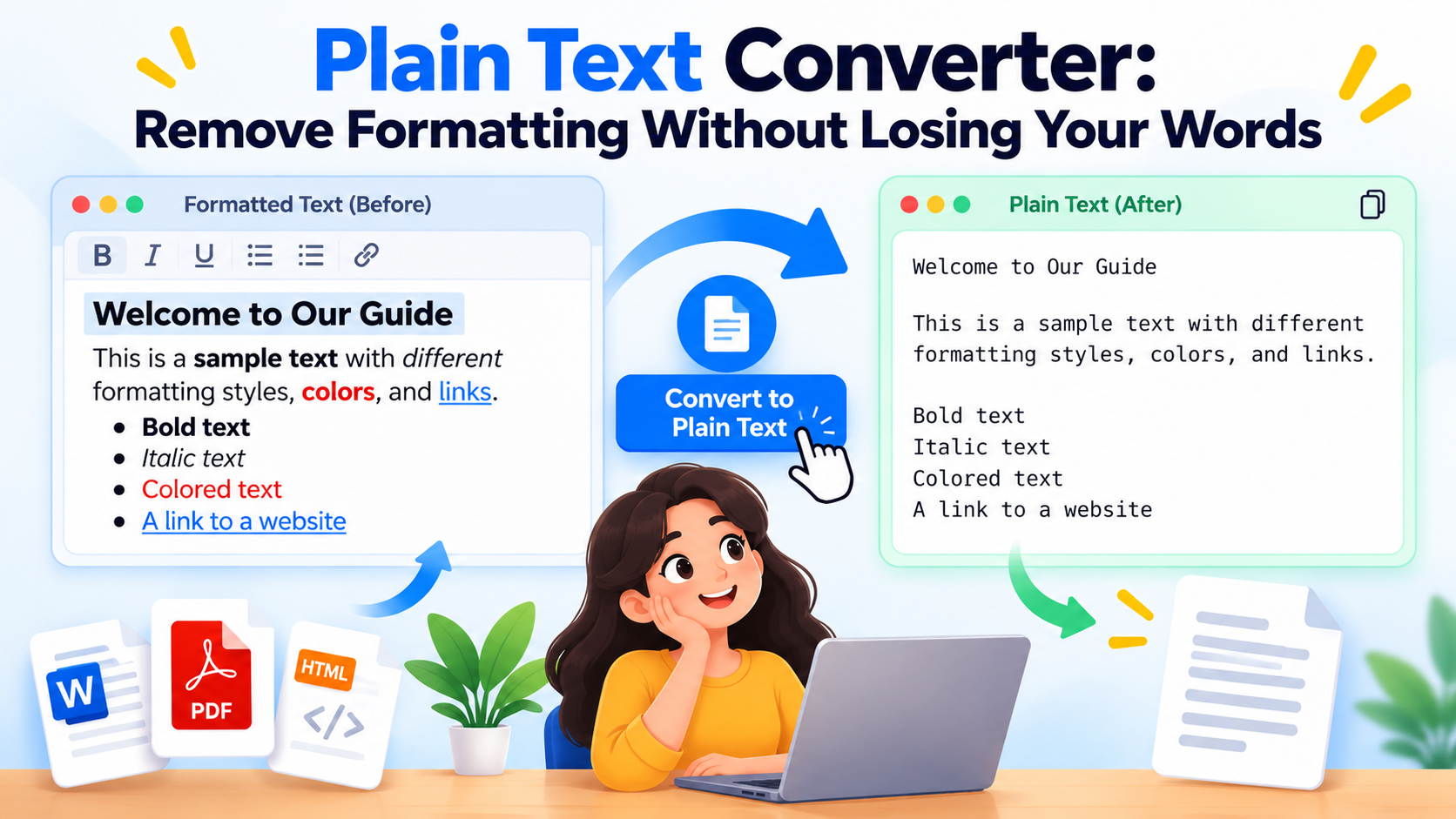
Plain text contains characters without rich text styles such as bold, italics or font colors. To convert to plain text, paste formatted content into the Plain Text Converter. Choose whether to remove HTML, extra spaces or empty lines, then copy the cleaned result.

For a focused format remover, use Remove Text Formatting to strip formatting from copied text. Making plain text removes styling; it does not rewrite your words.

Uppercase to Lowercase and Capital Letter Conversion

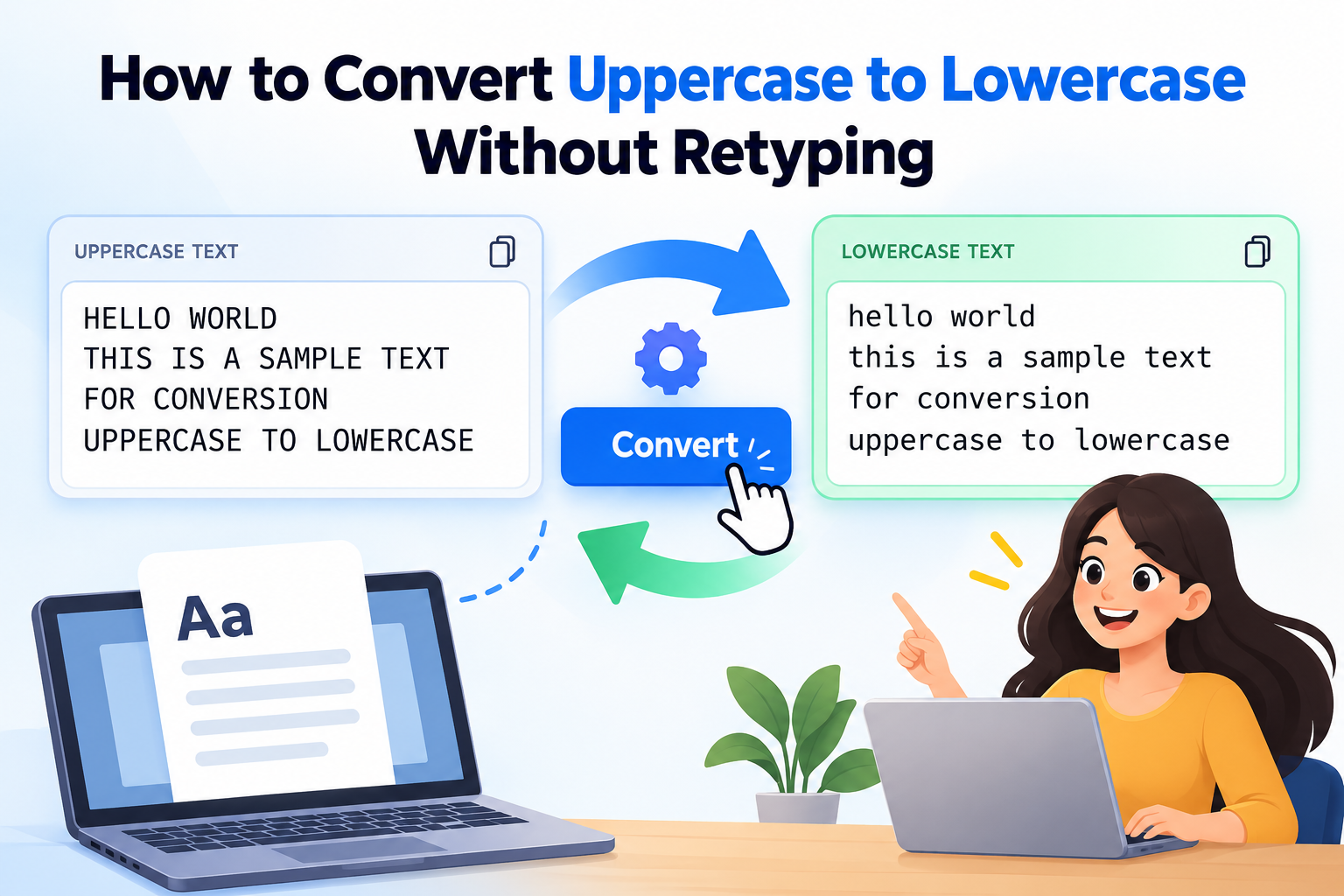
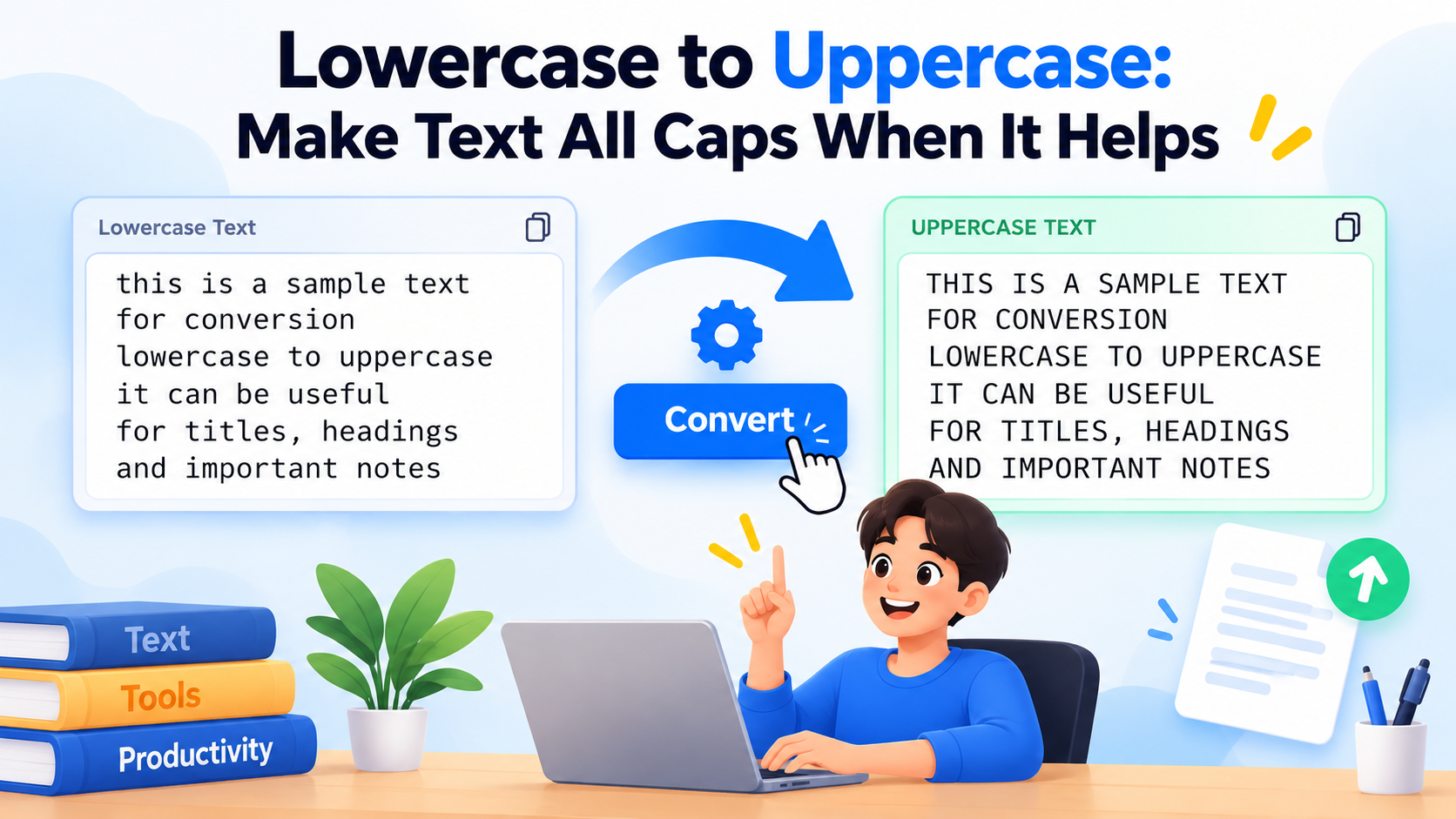
Use the quick conversions above as an uppercase generator or lowercase text generator. Select Uppercase to convert text to caps, or select Lowercase to change capital letters to small letters. For example, “Hello World” becomes “HELLO WORLD” or “hello world”.

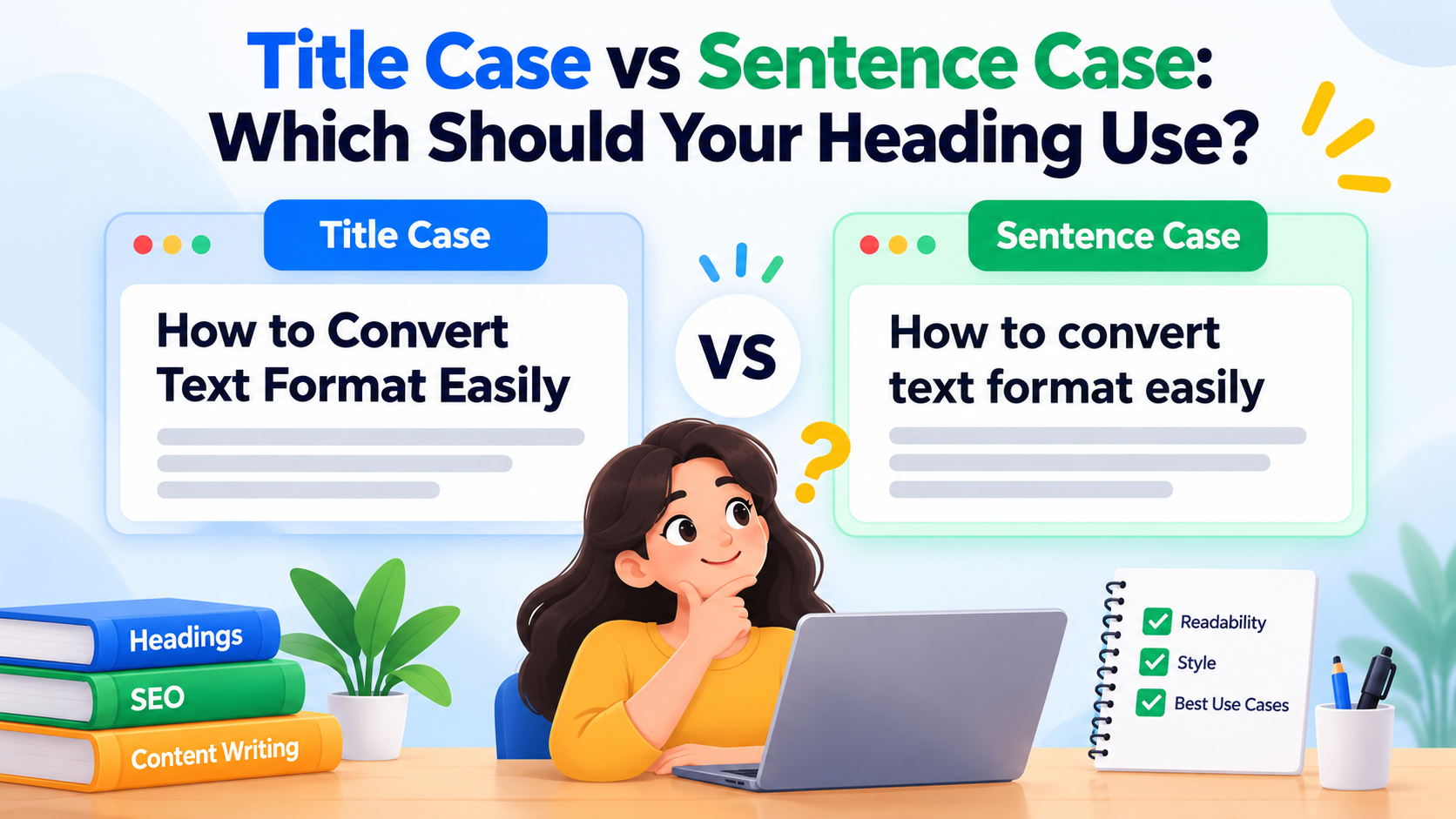
The Title Case Converter capitalizes words for headings while keeping selected short words lowercase. Sentence case starts sentences with a capital letter.

Paragraph to Single Line and Lines to Paragraph Converter

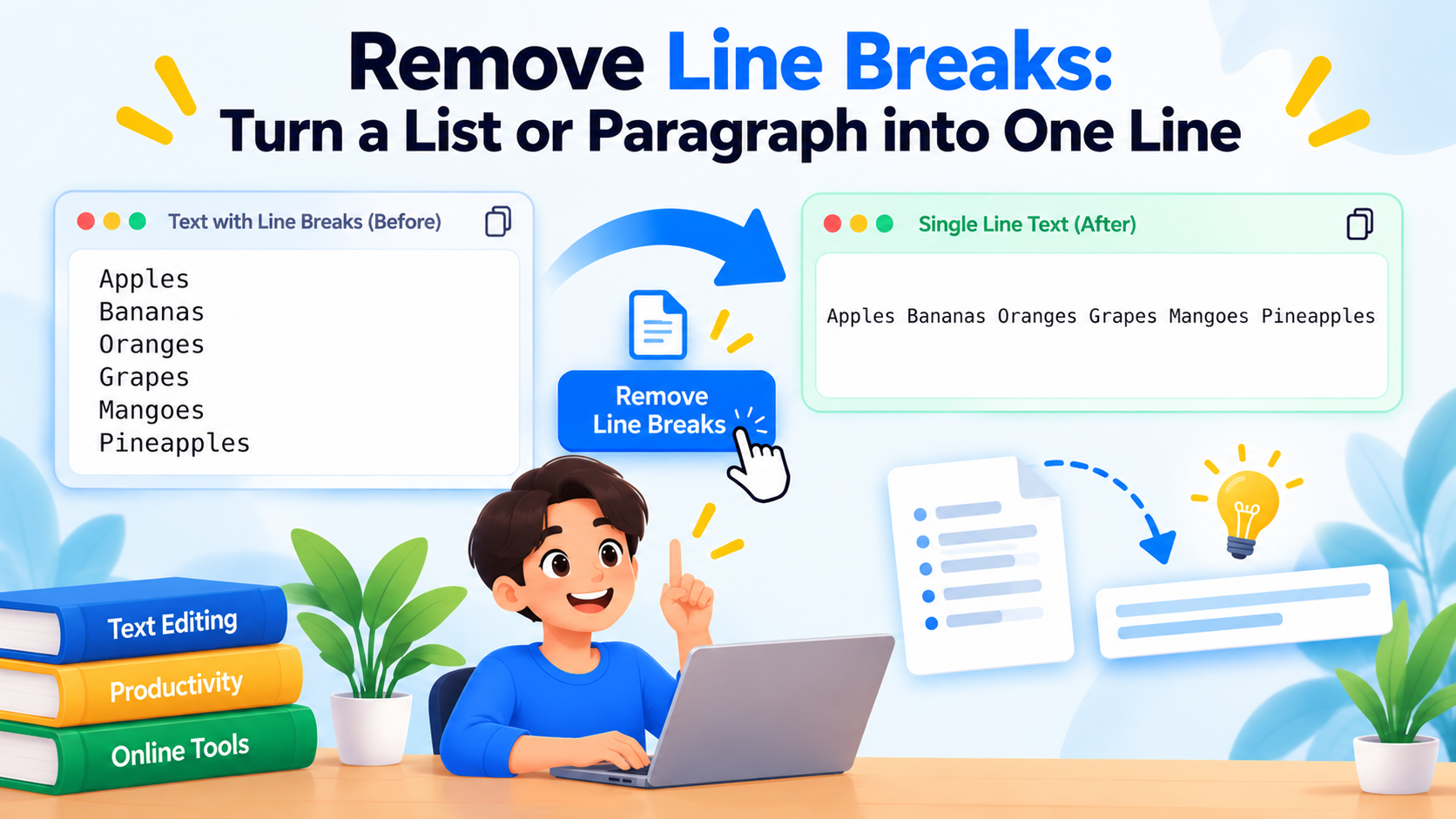
To turn text into one line, use the Line Break Remover. It replaces each line break with a space, joining a list or several lines into continuous paragraph text. For example, two lines containing “First line” and “Second line” become “First line Second line”.

This paragraph to line converter preserves your wording. To remove blank lines online while keeping the remaining lines separate, use the Remove Empty Lines option in the plain text converter.

Remove All Spaces or Clean Extra Spaces

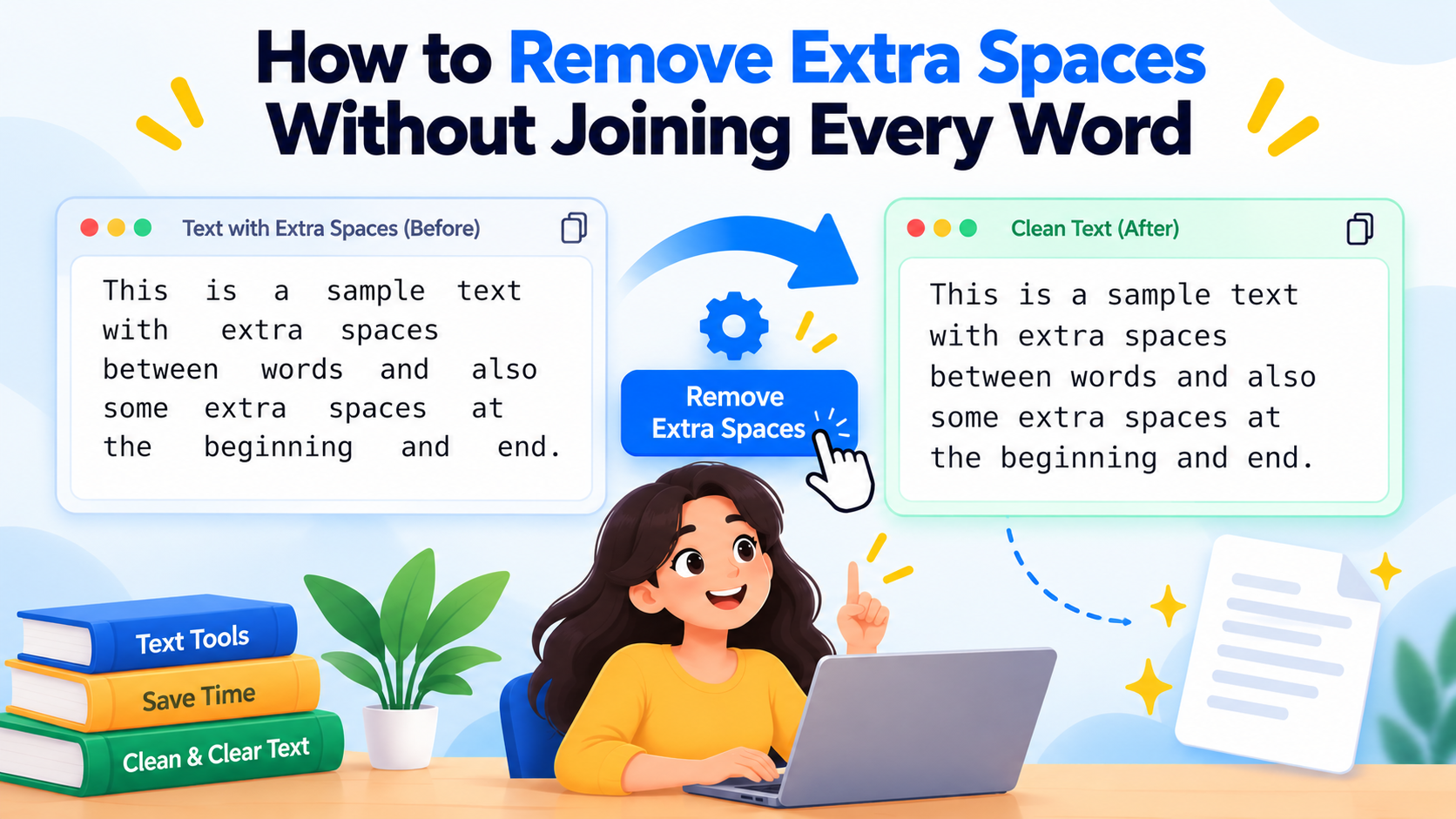
Use Remove Extra Spaces to reduce repeated spaces and tabs and trim the ends of your text. It keeps words separated, making copied text easier to read.

Choose Remove All Spaces when you need to join words together. It removes whitespace, including tabs and line breaks: “text converter” becomes “textconverter”.
Frequently Asked Questions

About The Text Converter

Welcome to The Text Converter. We built this platform with a single mission: to make everyday text formatting tasks quick and straightforward.

Our Purpose

Dealing with messy text formatting, line breaks from PDFs, or improperly cased titles is a universal frustration. Whether you are a writer drafting an article, a developer formatting code strings, or a marketer preparing social media copy, text cleanup takes valuable time.

The Text Converter simplifies these everyday tasks. By providing a comprehensive suite of free, intuitive tools, we help you transform your text instantly.

Commitment to Privacy and Usability

We firmly believe that utility tools should not compromise user privacy. That is why The Text Converter is built as a client-side application. When you paste text into our tools, it remains securely within your browser. We do not store, track, or upload your textual data to any external servers.

Furthermore, our platform is designed to be designed for keyboard navigation and mobile screens, and free of intrusive advertisements or registration walls. Just pure functionality when you need it.

Who Can Benefit?

  • Writers & Editors: Instantly convert to Title Case or clean up plain text.
  • Developers: Generate snake_case or dot.case variables in seconds.
  • Students: Strip weird formatting from copied academic resources.
  • Professionals: Clean up emails and remove double spaces to ensure polished communication.

The Text Converter Blog

Practical guides to changing letter case, cleaning copied text and choosing the right tool. Clear examples, without the guesswork.

Naming conventions · 2 min read

Snake Case and Dot Case: A Practical Guide to Text Naming

Naming becomes easier when every label follows the same pattern. Two simple patterns are snake_case and dot.case. Both turn a phrase into separated words, but the separator changes how the result is read and where it fits.

Snake Case and Dot Case: A Practical Guide to Text Naming — illustrated guide

What does snake case look like?

Snake case joins words with underscores. “Customer Order Status” becomes “customer_order_status”. A snake case converter is useful when you need to turn ordinary wording into a consistent label.

You may see snake case in variables, filenames and data fields. That does not mean every language or project prefers it. Follow the convention already used around the name you are adding.

What does dot case look like?

Dot case joins the words with periods: “customer.order.status”. It can suit dotted labels or a naming pattern chosen by a particular system.

A period can also have a technical meaning. In a filename it may separate an extension; in code it may indicate member access. A dot case converter changes text, but it cannot decide whether the result is valid in the system you plan to use.

Convert a phrase and review the result

Choose the Snake Case Converter or Dot Case Converter and paste your phrase. Review the output for word boundaries, abbreviations and numbers before copying it.

Keep the original meaning clear. A consistent separator cannot fix an unclear name. “customer_order_status” is more useful than “thing_data” because the words describe what the value represents.

A small naming checklist

Check whether the destination allows the separator, whether names may begin with a number, and whether letter case matters. Existing code or documentation is often the best guide.

If a project already uses camelCase, do not introduce snake_case simply because it is easy to generate. Consistency with the project is more valuable than a personal preference for one converter.

Contact Us

Have a suggestion for a new tool or found a bug? We'd love to hear from you. Send us a message using the form below.

Tool Title

Tool Description

Paste text to see the result instantly, or press Convert Text. Shortcut: Ctrl/Command + Enter.

Input

Words: 0 Chars: 0

Output

Words: 0 Chars: 0

How to use the Tool

Our tool is designed to be straightforward and fast. Simply paste your text into the input field above. The tool automatically processes your text according to the selected options and displays the result in real-time in the output box. Once converted, you can quickly copy the text to your clipboard or download it as a plain .txt document.

Key Features

  • Instant Processing: Text is converted immediately as you type or change settings.
  • Browser Processing: All data processing happens locally within your browser. Your text never touches our servers.
  • Free to Use: No registration required. Very large inputs may take longer depending on your device.

Related Text Tools

Message